Workspace Settings
> Manage your workspace configuration, team members, and subscription.
General settings
Workspace name
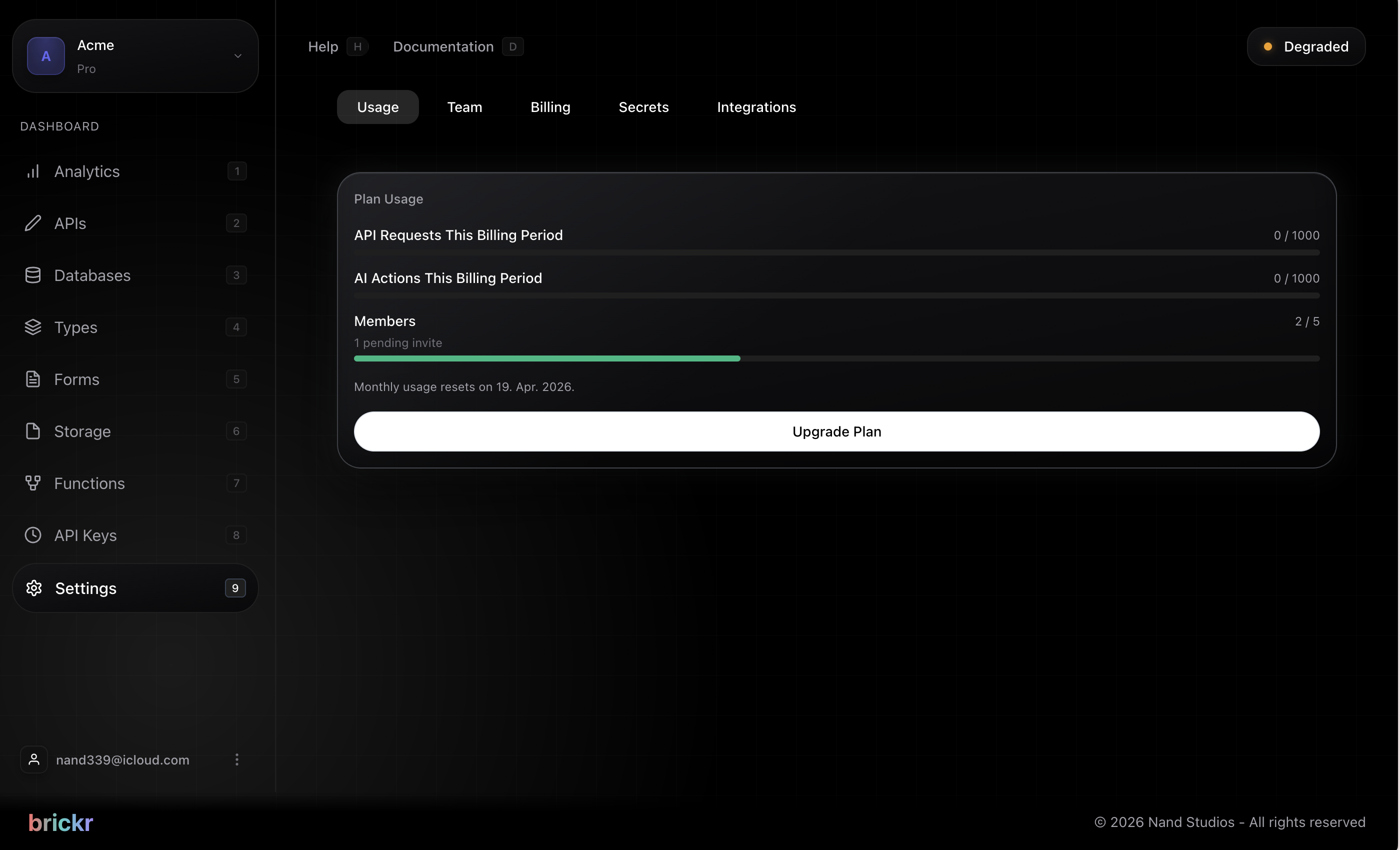
Change your workspace name from the general settings tab. This name is displayed in the dashboard and in team invitations.
Workspace ID
Your workspace has a unique ID used internally. This ID is displayed in the settings but cannot be changed.
!Workspace settings and usage panel
> Configure the address this workspace sends from with the send-email-brickr node.
Sender handle
Brickr sends on a shared, DNS-verified domain, so a workspace can send authenticated mail without connecting a domain of its own. Claim one handle for the workspace:
acme-support@share.brickr.devHandles are globally unique. Uniqueness is checked after normalization and after folding look-alike characters, so acme and 4cme cannot both exist. Role names such as support and billing, and well-known brand names, are reserved.
Only workspace owners, admins, and members with the manage_settings permission can claim or change the sender identity. The account claiming it must have a verified email address.
A handle can be claimed once a month. The limit counts claims, not handles, so releasing one and claiming another does not reset it -- releasing while the cooldown is active leaves the workspace unable to send until it expires. The release dialog says so before you confirm.
The handle is permanent. Releasing it retires it for good -- neither you nor anyone else can claim it again, because recipients have already learned to trust that address.
Display name
The display name is what mail clients show as the sender. Brickr always appends via Brickr to it, so a recipient can tell a shared-domain sender apart from a company sending on its own domain.
Reply-to address
Set a reply-to address and replies go to your own inbox instead of the Brickr handle. Brickr emails a six-digit code to the address and only honors it once the code is confirmed, so replies cannot be pointed at an address the workspace does not control.
Enter the code in the confirmation dialog. A new code can be requested every 30 seconds; the cooldown is enforced by the server, so closing and reopening the dialog does not reset it.
Sending limits
Each workspace has a daily send cap because all workspaces share one sending domain and therefore one sending reputation. The counter resets at midnight UTC and is shown in the Email tab.
Only accepted sends count. If the provider rejects a message, the attempt is logged as failed and the daily counter is left alone.
Recent emails
The Email tab lists the last 30 days of sends with their status, subject, recipient, and time. Failed rows carry the provider's error message, which is usually enough to tell a bad recipient address apart from a rejected sender.
Recipients are shown in full to owners, admins, and members with the manage_settings permission. Everyone else sees them masked (a*******h@gm*.com), so the log stays useful for debugging without handing every member a customer list.
Team management
Inviting members
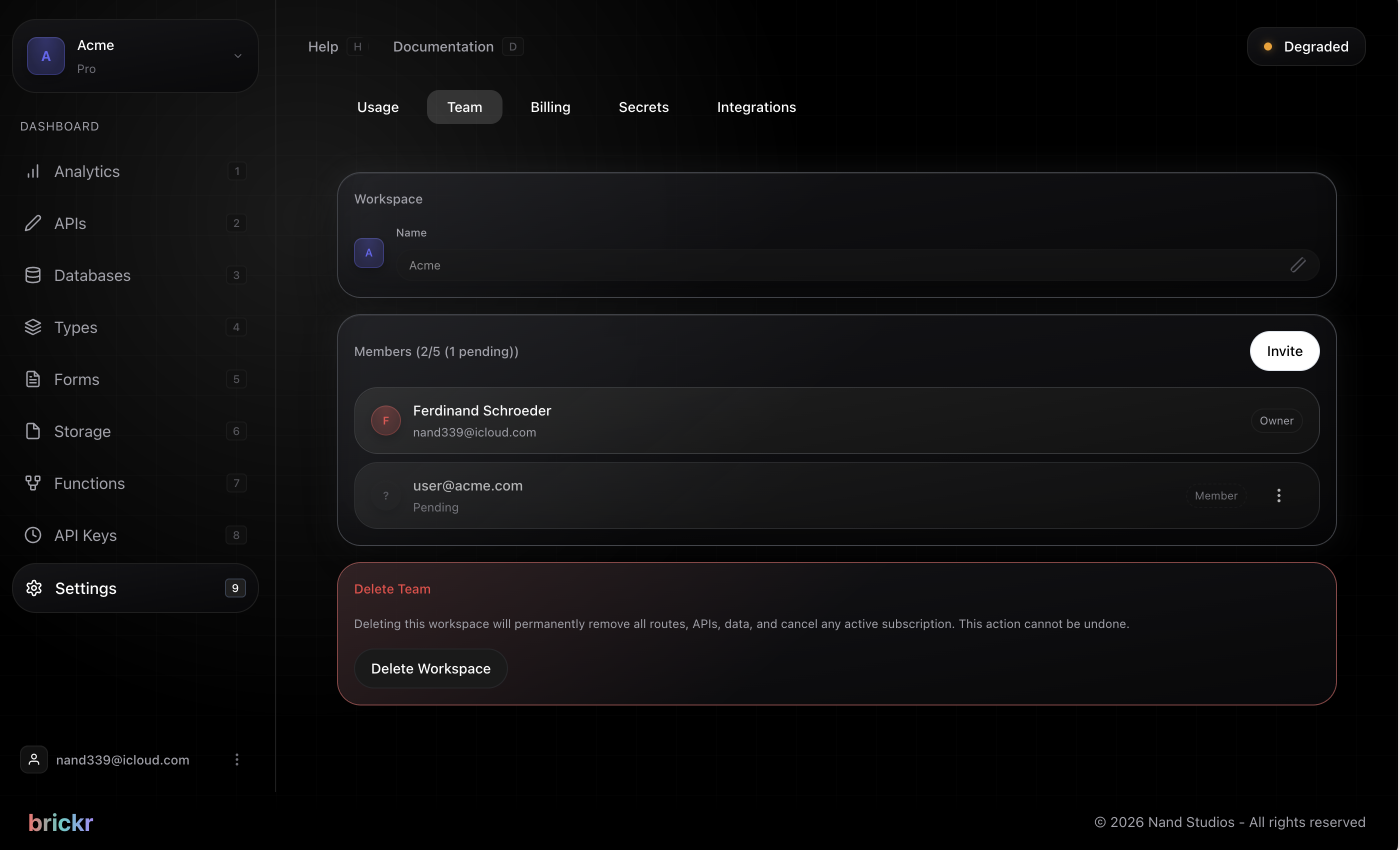
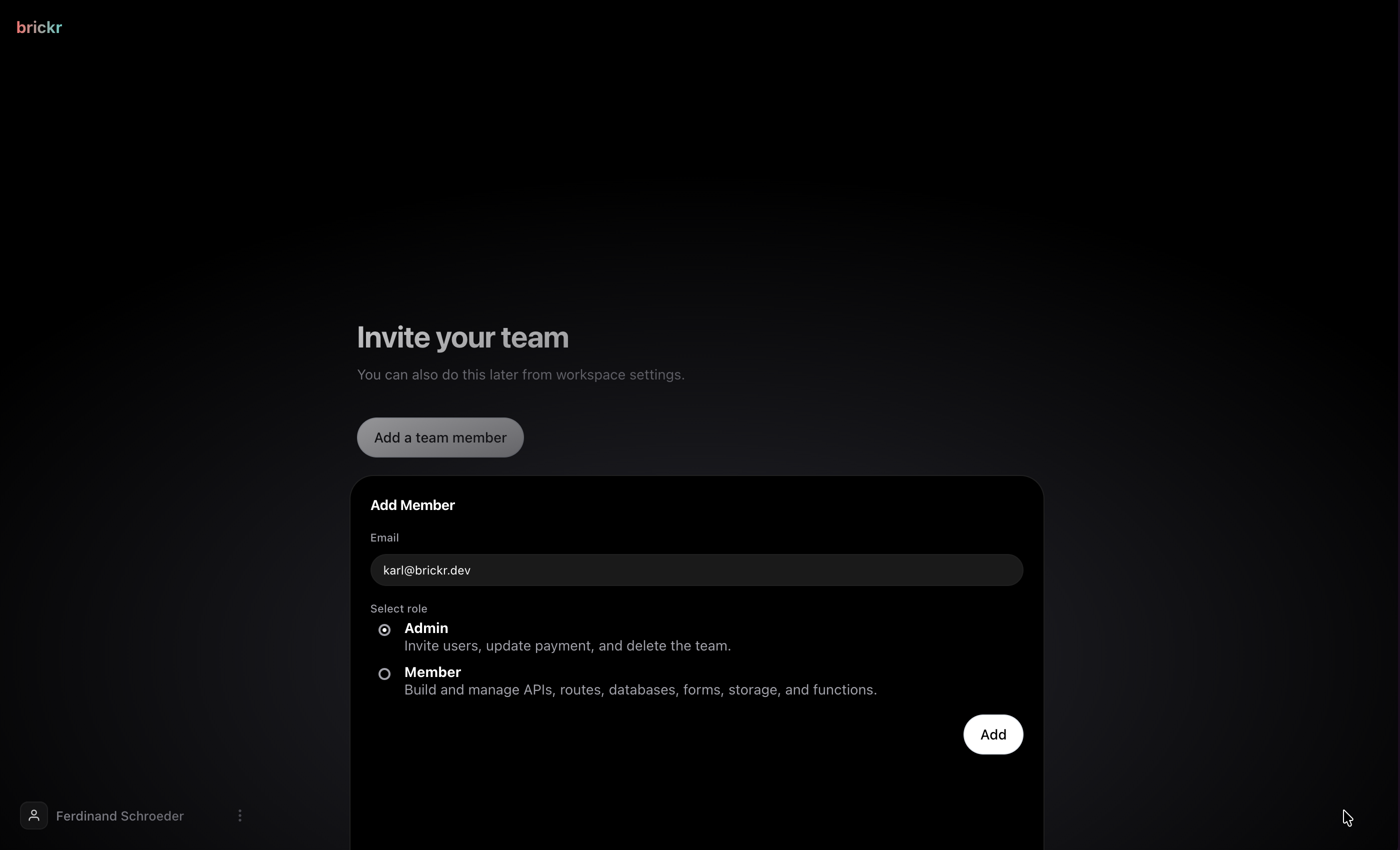
1. Navigate to Settings > Team. 2. Click Invite Member. 3. Enter the email address and select a role: - Admin -- full access to all features including billing and team management - Member -- access to APIs, routes, databases, forms, and storage
The invited person will receive an email with a link to join your workspace.
!Team list in workspace settings
Removing members
1. Navigate to Settings > Team. 2. Find the member you want to remove. 3. Click the options menu and select Remove.
Removing a member does not delete any resources they created. Their APIs, routes, and other resources remain in the workspace.
Changing roles
Admins can change the role of any team member:
1. Navigate to Settings > Team. 2. Click the options menu next to the member. 3. Select Change Role.
Billing
Plans
Brickr offers three plans:
| Feature | Free | Pro | Ultra | |---------|------|-----|-------| | Price | 0 EUR/mo | 14 EUR/mo | 40 EUR/mo | | Team Members | 1 | 5 | 15 | | Monthly API Calls | 300 | 1,000 | 10,000 | | Requests/second | 2 | 10 | 25 | | AI Calls/month | 30 | 1,000 | 10,000 | | Custom Nodes | -- | 10 | Unlimited | | Cron Jobs | -- | Yes | Yes |
Upgrading
1. Navigate to Settings > Billing. 2. Select the plan you want. 3. Enter your payment details. 4. Your new plan takes effect immediately.
Downgrading
When downgrading, your current resources are preserved but you cannot create new ones that exceed the lower plan's limits. Existing resources that exceed limits will continue to work until modified.